Second UID
How-to Guide
This guide explains how to get a second UID for use with multiple characters on the same Sphene account.
Why You Might Need This
You may need a second UID if:
- Multiple characters: You want to use Sphene on multiple FFXIV accounts or characters
- Account separation: You want to separate different characters for privacy or organization
Getting a Second UID via Discord Bot
The Discord bot REG-09 in the #sphene-registration channel can create secondary UIDs for your existing account.
Step 1: Join the Discord Server
If you haven't already, join the Sphene Discord server and navigate to the #sphene-registration channel.
Step 2: Interact with REG-09
In the #sphene-registration channel, look for the bot REG-09 and interact with it to start the registration wizard.
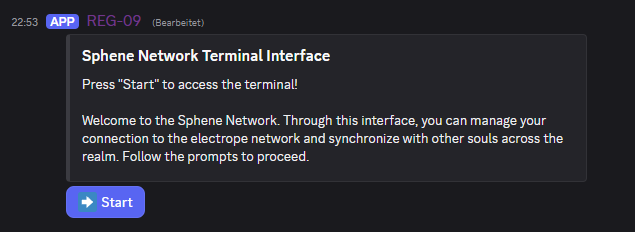
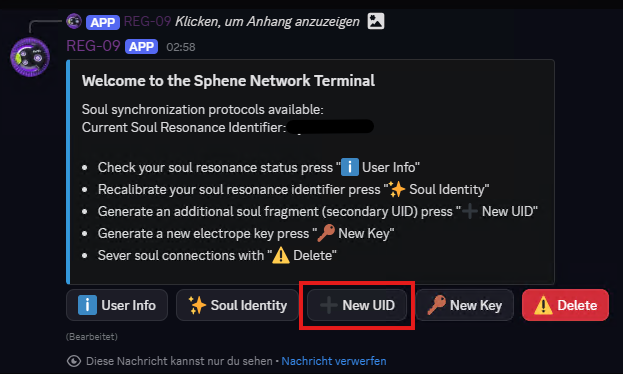
Step 3: Request a New UID
Use the "New UID" button to request a secondary UID for your existing account.
Step 4: Copy Your Secret Key
The bot will display your new UID and secret key. Copy the secret key immediately - it will only be shown once!
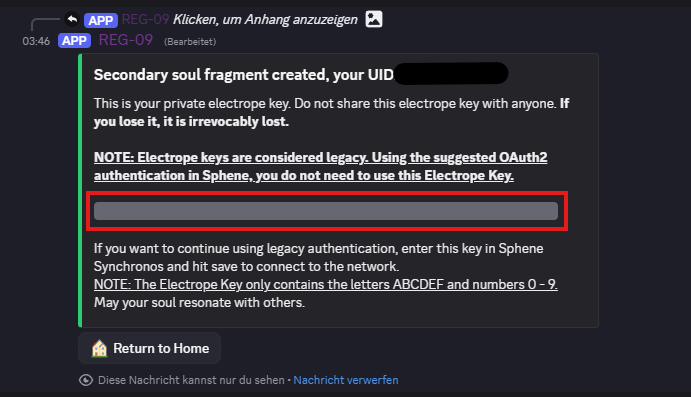
- The secret key is shown in a spoiler (click to reveal)
- Copy it immediately - it cannot be recovered
- Never share your secret key with anyone
- The secret key contains only letters A-F and numbers 0-9
Adding the Secret Key to Sphene
Once you have your new secret key, you need to add it to Sphene.
Step 1: Open Sphene Settings
Open the Sphene plugin settings in-game by right-clicking the Sphene icon or using the /sphene settings command.
Step 2: Navigate to Connectivity
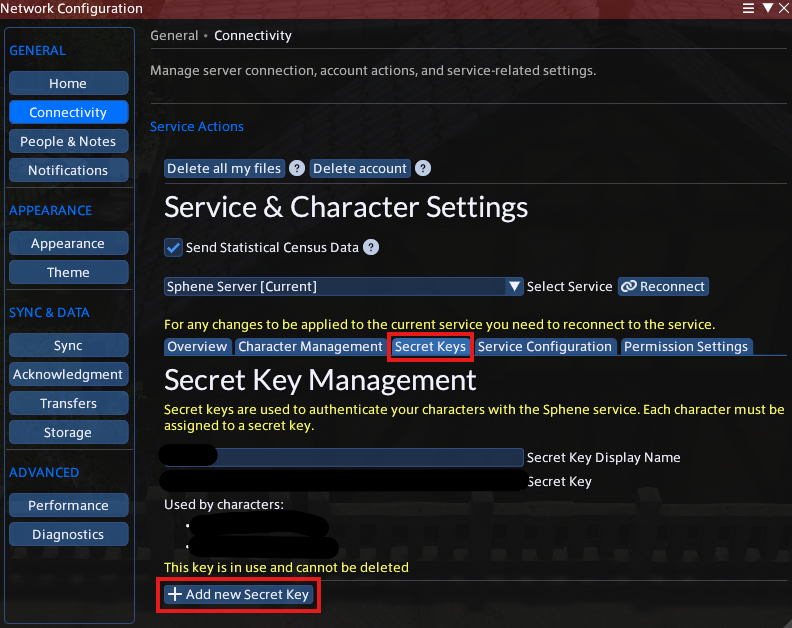
In the Settings panel, go to the Connectivity tab.
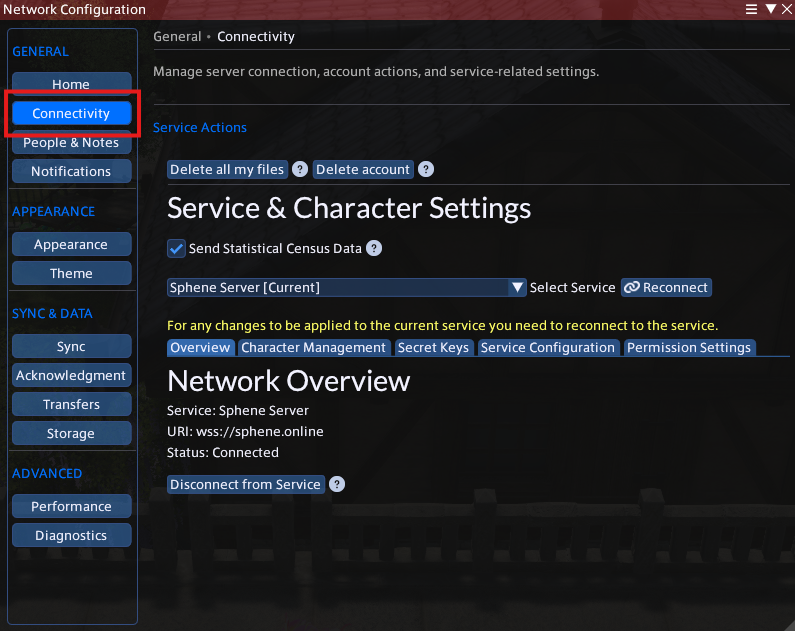
Step 3: Add Your Secret Key
In the Connectivity tab, find the Secret Key section and click the Add button.
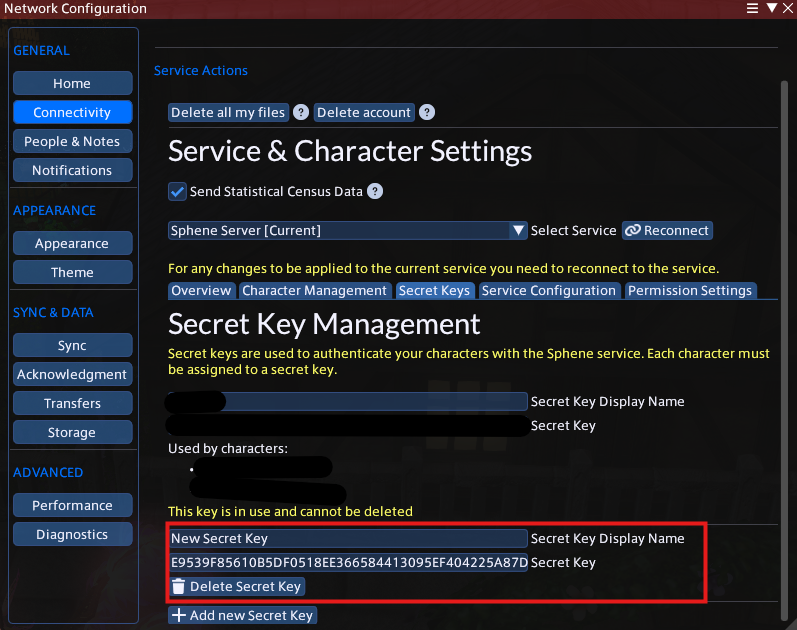
Step 4: Paste Your Secret Key
Paste your secret key into the field and click Save.
Assigning the UID to a Character
After adding the secret key, you need to assign the UID to a specific character.
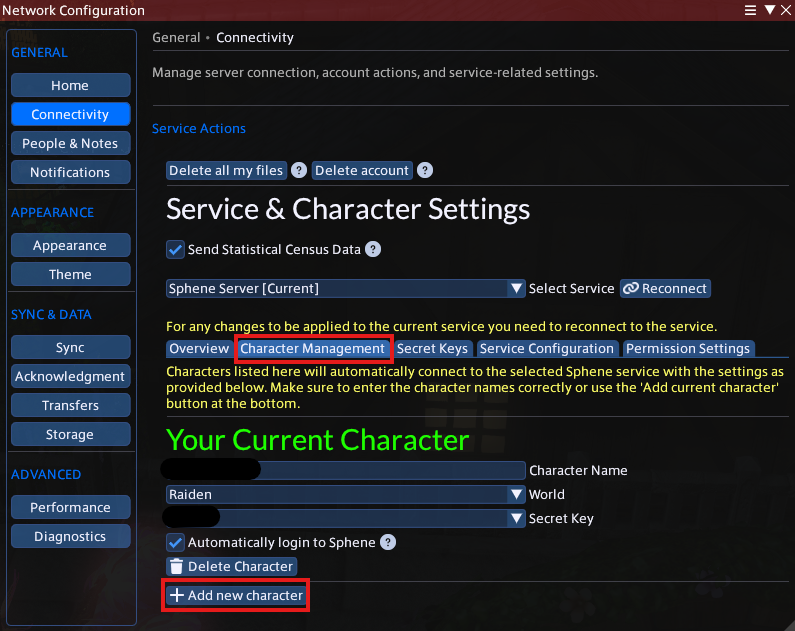
Step 1: Open Character Management
In Sphene settings, navigate to the Character Management section.
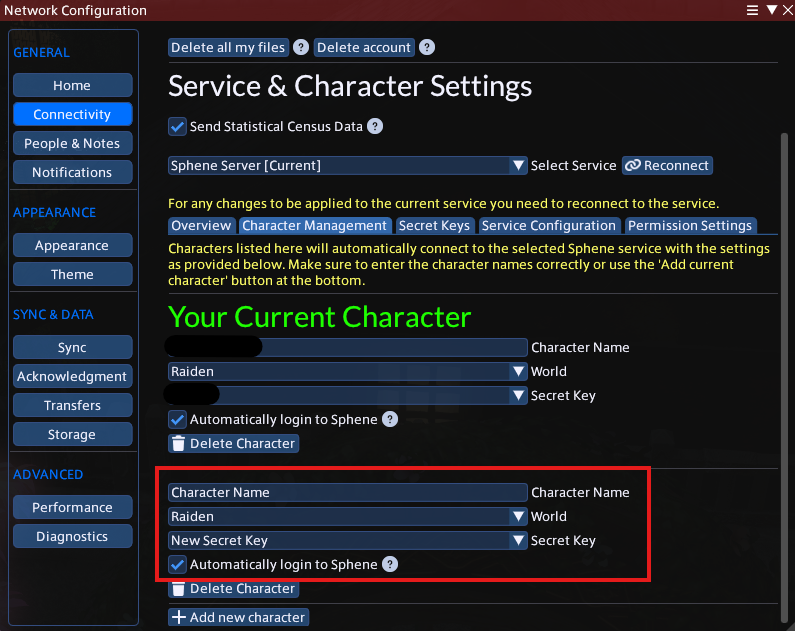
Step 2: Add Character to use New Secret Key
Enter Character Name, Set the World and Select your New Secret Key.
Step 3: Save and Connect
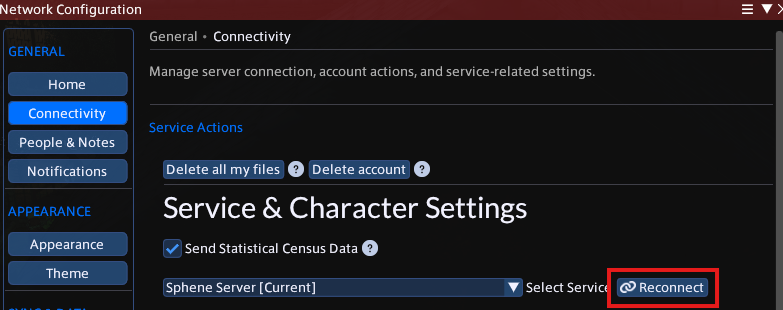
Save your settings and connect to the server with your new UID.
Troubleshooting
UID Not Working
- Ensure you set the UID correctly in Character Management
- Check that the UID matches what the Discord bot provided
Discord Bot Not Responding
- If the Discord bot is not responding, it may be due to a network error.
- Try contacting a moderator if the bot is unresponsive